|
Mara Pontes
DEDICATÓRIA
Com carinho!
TRADUÇÕES

MATERIAL

Seleções: lateral1lc
lateral2lc --
Salvar na pasta Selections do PSP.
Preset: Illumination → Lights → Preset_Lights_2bllc --
Salvar na pasta Presets do PSP.
Tubes: MR_Estel
1_paysage_p1_animabelle
Premade: premade natureza beira rio2 dworisch
Mask: mask_zz
Marca-d'água.
Efeitos do PSP.
Versão usada: PSP X8.
PLUGINS
Plugin Andromeda → Designs
Plugin MuRa's Meister → Perspective Tiling
Plugin MuRa's Meister → Pole Transform
Plugin FM Tile Tools → Saturation Emboss
Plugin Transparency → Eliminate Black
Plugin AAA Frames → Foto Frame
Plugin AAA Filters → Custom
TUTORIAL
|
Esta seta marca sua linha
Clique e arraste para movê-la
|
|
Configure: Foreground: #af9d0b — Background: #561902.
1_.
Abra uma nova imagem transparente de 1024 x 800 px.
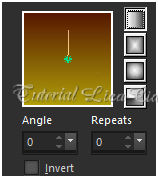
Pinte com o gradiente formado pelas cores acima.
Configure: Style: Linear — Angle: 0 — Repeats: 0 — Invert desmarcado.
Layers → Duplicate.
2_.
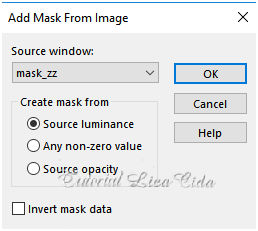
Layers → New Mask Layer → From Image: mask_zz.
Layers → Merge → Merge Group.
Effects → 3D Effects → Drop Shadow: 8 / 8 / 80 / 11,58 — Color: #000000.
3_.
Effects → Geometric Effects → Perspective - Vertical.
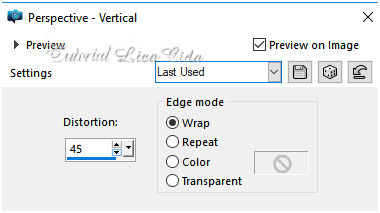
4_.
Plugin FM Tile Tools → Saturation Emboss.
Repita o efeito.
Image → Mirror → Mirror Vertical.
Effects → Reflection Effects → Rotating Mirror — Default.
Layers → Merge → Merge Down.
Layers → Duplicate.
Image → Mirror → Mirror Vertical.
5_.
Plugin MuRa's Meister → Perspective Tiling.
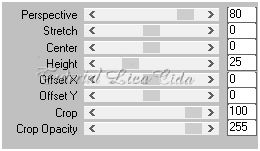
Effects → User Defined Filter → Emboss_3.
6_.
Selections → Load/Save Selection → Load Selection From Disk → lateral1lc.
Layers → New Raster Layer.
Pinte com o mesmo gradiente do item 1 — Opacity: 40%.
7_.
Plugin Andromeda → Designs.
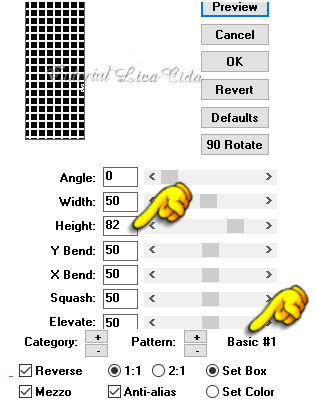
8_.
Plugin Transparency → Eliminate Black.
9_.
Effects → 3D Effects → Chisel (cor do Foreground).
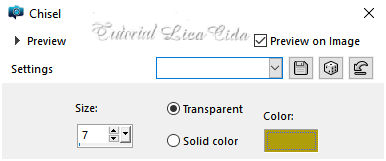
Effects → Edge Effects → Enhance.
Selections → Select None.
10_.
Selections → Load/Save Selection → Load Selection From Disk → lateral2lc.
Layers → New Raster Layer.
Pinte com o mesmo gradiente do item 1 — Opacity: 40%.
11_.
Plugin Andromeda → Designs (print do item 7).
12_.
Plugin Transparency → Eliminate Black.
13_.
Effects → 3D Effects → Chisel (cor do Foreground — print do item 9).
Effects → Edge Effects → Enhance.
Selections → Select None.
Layers → Merge → Merge Down.
Effects → 3D Effects → Drop Shadow: 8 / 8 / 80 / 11,58 — Color: #000000.
14_.
Effects → Reflection Effects → Feedback.
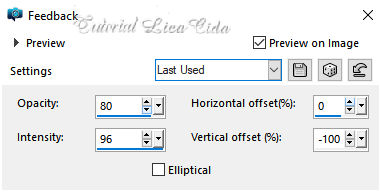
15_.
Plugin MuRa's Meister → Pole Transform — Default.
Blend Mode: Overlay (ou a gosto).
16_.
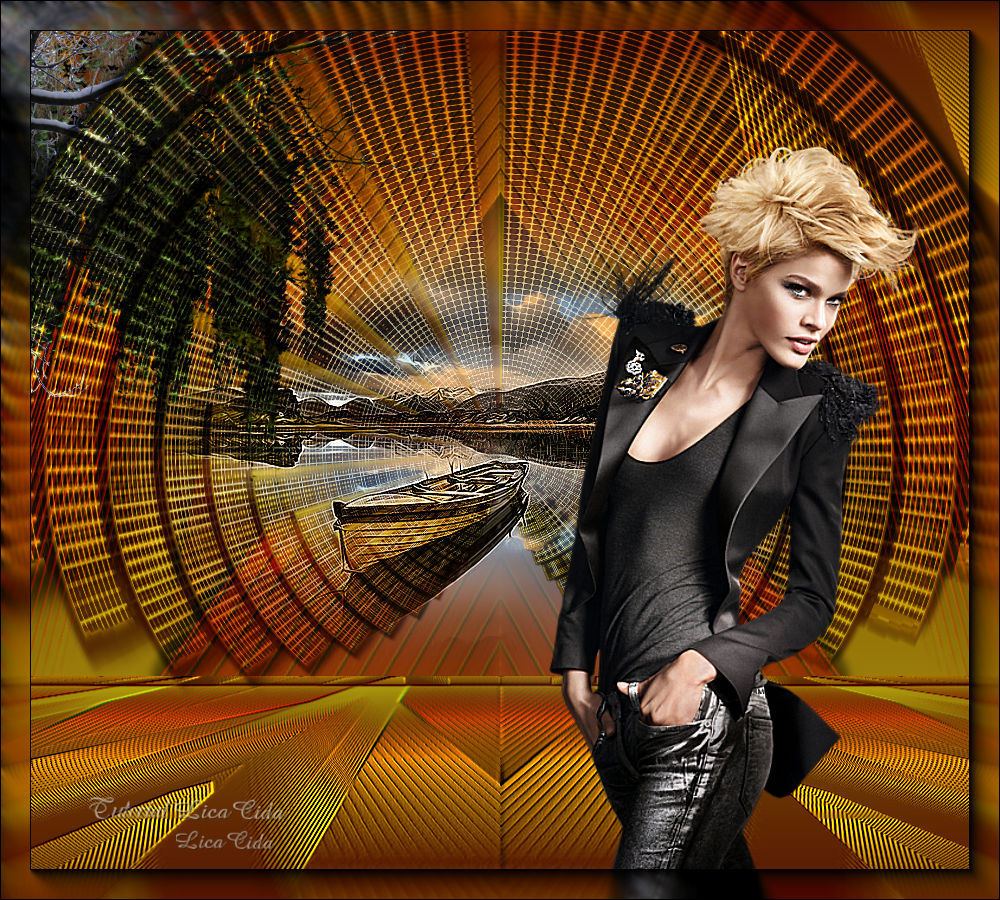
Edit → Copy no tube 1_paysage_p1_animabelle
Edit → Paste As New Layer.
Adjust → Sharpness → Sharpen More.
Layers → Arrange → Move Down.
17_.
Edit → Copy no premade natureza beira rio2 dworisch
Edit → Paste As New Layer.
Objects → Align → Top.
Objects → Align → Left.
18_.
Effects → Illumination Effects → Lights → Preset_Lights_2bllc.
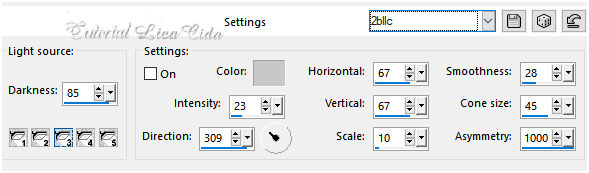
19_.
Ative a layer superior.
Edit → Copy no tube MR_Estel
Edit → Paste As New Layer.
Adjust → Sharpness → Sharpen.
Image → Mirror → Mirror Horizontal.
Posicione a gosto.
Opcional: use um deco ao lado do tube.
LAYERS
Altere os Blend Modes e a Opacity das layers.
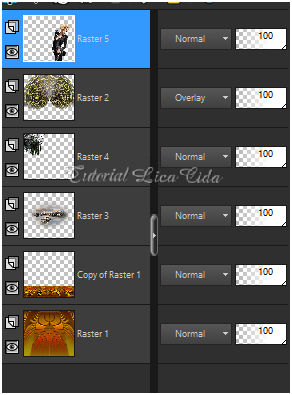
Layers → Merge → Merge Visible.
20_.
Plugin AAA Frames → Foto Frame — Width: 30 (demais valores Default).
Opcional: Plugin AAA Filters → Custom → Landscape (Default).
Aplique a marca-d'água.
Assine e salve.
Espero que gostem.
Aparecida / LicaCida, agosto de 2019.
Rio de Janeiro - Brasil.

VOLTAR
Copyright ©2026 - Web Design - Naise Minas
|


