|
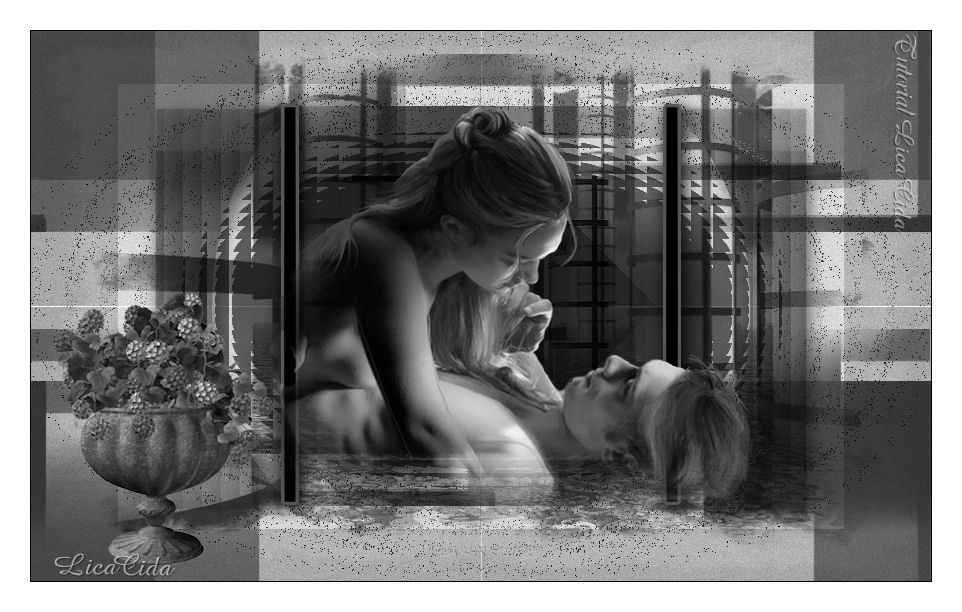
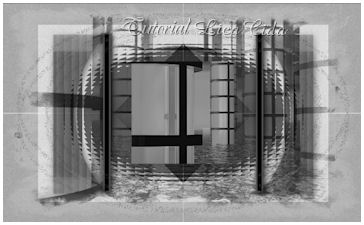
Depois
TRADUÇÕES
MATERIAL
Seleções - Salvar seleção na pasta Selections do PSP. Efeitos: efeito lica1 efeito lica2
background MNIT
Tubes: pspcybertubes2012-204
Marca-d'água.
Versão PSP X3.
PLUGINS
Plugin Filters Factory Gallery A → Holidays in Egypt
TUTORIAL
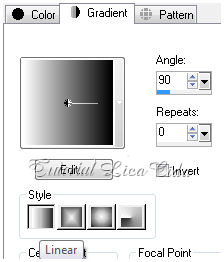
1_. Abra uma nova imagem transparente de 900 x 550 px. Pinte com a cor #ffffff. 2_. Layers → New Raster Layer. Pinte com o gradiente formado pelas cores #ffffff e #000000.
Configure: Style: Linear - Angle: 90 - Repeats: 0
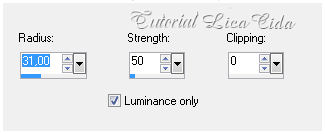
3_. Plugin Filters Factory Gallery A → Holidays in Egypt: 157. 4_. Plugin Simple → Pizza Slice Mirror. Repita o efeito. 5_. Adjust → Sharpness → Sharpen More. 6_. Adjust → Sharpness → Unsharp Mask.
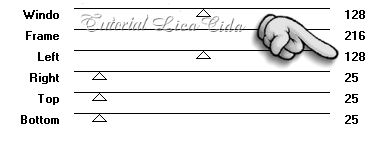
7_. Plugin Mock → Windo: 128 / 216 / 128 / 25 / 25 / 25.
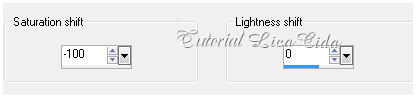
8_. Layers → Duplicate. Image → Mirror. Opacity: 50%. Layers → Merge → Merge Visible. 9_. Adjust → Add/Remove Noise → Add Noise. Uniform e Monochrome marcados — Noise: 10. 10_. Layers → New Raster Layer. Selections → Select All. Edit → Copy no background MNIT Edit → Paste Into Selection. Selections → Select None. 11_. Adjust → Hue and Saturation → Hue Map: -100 / 0.
[
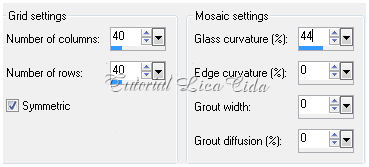
Blend Mode → Hard Ligh — Opacity: 68%. 12_. Layers → New Raster Layer. Selections → Load/Save Selection → Load Selection From Disk → lcdepois1. Pinte com a cor #000000. Selections → Select None. Opacity: 57%. 13_. Effects → Texture Effects → Mosaic - Glass: 40 / 40 / 44 / 0 / 0 / 0 — Symmetric marcado.
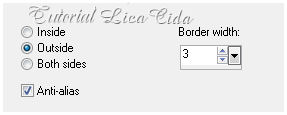
Effects → 3D Effects → Drop Shadow a gosto. 14_. Layers → New Raster Layer. Selections → Load/Save Selection → Load Selection From Disk → lcdepois2. Pinte com a cor #000000. 15_. Selections → Modify → Select Selection Borders.
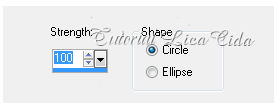
Pinte com a cor #565656. Selections → Select None. Effects → 3D Effects → Drop Shadow. Use os mesmos valores do efeito anterior. 16_. Layers → New Raster Layer. Selections → Load/Save Selection → Load Selection From Disk → lcdepois3. Pinte com a cor #000000. Selections → Select None. 17_. Plugin Toadies → What Are You?: 20 / 20. 18_. Effects → Geometric Effects → Spherize.
Repita o efeito. 19_. Effects → Texture Effects → Blinds.
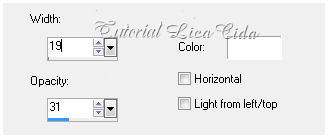
Blend Mode → Multiply — Opacity: 73%. Effects → 3D Effects → Drop Shadow. 20_. Layers → New Raster Layer. Selections → Load/Save Selection → Load Selection From Disk → lcdepois4. Pinte com a cor #ffffff. Selections → Select None. 21_. Plugin Toadies → What Are You?: 20 / 20. Blend Mode → Dissolve — Opacity: 31%. Repita (opcional) Plugin Toadies → What Are You?: 20 / 20. Blend Mode → Dissolve — Opacity: 24%. Layers → Merge → Merge Down. 22_. Edit → Copy no background 2 MNIT_Frame Edit → Paste As New Layer. 23_. Adjust → Hue and Saturation → Hue Map: -100 / 0. Veja o print do item 11.
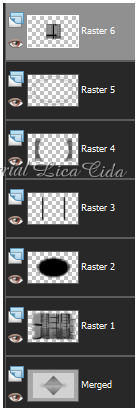
Blend Mode → Overlay. Layers:
24_. Edit → Copy no efeito lica1 Edit → Paste As New Layer. 25_. Edit → Copy no efeito lica2 Edit → Paste As New Layer. 26_. Effects → Image Effects → Seamless Tiling → Default. Layers → Merge → Merge Down. Blend Mode → Multiply — Opacity: 68%. 27_. Edit → Copy nos tubes escolhidos Edit → Paste As New Layer. Posicione. Image → Resize, se necessário. 28_. Image → Add Borders → 1 px, Symmetric marcado — Color: #000000. 29_. Image → Add Borders → 30 px, Symmetric marcado — Color: #ffffff. Aplique a marca-d'água. Assine e salve. Espero que gostem. Aparecida / LicaCida, em maio de 2012. Rio de Janeiro - Brasil.
Copyright ©2020/2025 -
Web Design -
Liriani Silva®
|